
Tank filling (3D)#
Description of the setup#
Figure 10 shows the geometry of the test case you will run in this tutorial. It consists of a 3D tank initially half-filled with liquid, a front-tracking interface separating liquid and gas. There is a rotating solid in the liquid and a droplet in the gas above the liquid. The problem will be treated with a 3D structured mesh (VDF discretisation of TRUST).
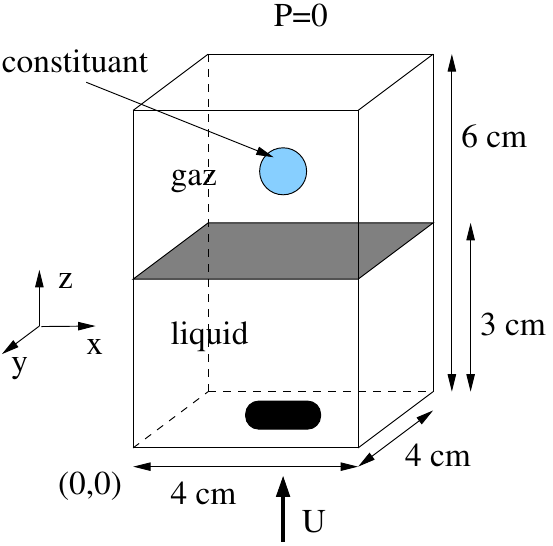
Figure 10 Geometry of the tank#
Fluid Properties#
Phase |
Property |
Value |
|---|---|---|
Liquid |
\(\rho\) |
\(1000 kg.m^{-3}\) |
Liquid |
\(\mu\) |
\(2.82 \times 10^{-4} kg.m^{-1}.s^{-1}\) |
Liquid |
\(\sigma\) |
\(0.05 N.m^{-1}\) |
Liquid |
\(D\) |
\(10^{-6} m^2.s^{-1}\) |
Gas |
\(\rho\) |
\(100 kg.m^{-3}\) |
Gas |
\(\mu\) |
\(2.82 \times 10^{-4} kg.m^{-1}.s^{-1}\) |
Boundary Conditions#
Location |
Condition |
|---|---|
Up |
Free outlet |
Down |
\(V=(0,0,10^{-3} m/s)\) |
Walls |
\(V=0\) |
Initial Conditions#
\(V=0\)
\(C=e^{(-((x-0.02)^{2}+(y-0.02)^{2}+(z-0.03)^{2})/0.03^{2})}\)
The initial interface between the air and the gas is a parabolic function.
Tutorial setup#
First, go to an empty directory and copy the base TrioCFD test case from which we will start: FTD_all_VDF
triocfd -copy FTD_all_VDF && cd FTD_all_VDF
Open the datafile FTD_all_VDF.data in a text editor of your choice.
A few remarks:
The Front-tracking module of TrioCFD is not extensively tested in 2D. It may not be reliable.
The use of the front tracking module is indicated by the type of problem:
Probleme_FT_Disc_genis used hereIn the Navier-Stokes equation of
Probleme_FT_Disc_gen, the use of the keywordmodele_turbulenceis mandatory. For a laminar problem, specifymodele_turbulence nul.
Modifying the test case#
Start by making some changes in the file FTD_all_VDF.data:
Increase the height of the tank from 0.06 to 0.12
Do not forget to adapt boundary definitions
Increase the max time
tmaxinScheme_euler_explicitto 0.5 (or more)Add a second droplet above the first one, at z=0.08.
keyword
ajout_phase0could be useful. Look in the Keyword Reference Manual forajout_phase0/ajout_phase1It is also possible to access the reference manual with
triocfd -indexDo not forget commas between the two definition of each droplet
Change the postprocessing period
dt_postof each postprocessing block from 0.05 to 0.01in the first one, add
format lata
The first postprocessing block (
Post_processing) is the classical block for post-processing probes and fields. Here, we want to see the concentration field and theindicatrice_interffield. Value of this field is 0 for liquid and 1 for gas, so the interface is located atindicatricevalue 0.5Change the interpolation location of
indicatrice_interfand theconcentrationfields in the first post-processing block, by adding the keywordelemjust after the fields.the values in the post-processing tool will be plotted at the center of each element of the mesh.
this is done in the block right before
liste_postraitements.
The second postprocessing block (
postraitement_ft_latainliste_postraitements) allows to visualize the moving mesh of the interface. It can be visualized with visit.For each interface, several fields can be obtained:
curvature, with the
courburekeywordvelocity interface, with the
vitessekeywordpe, used here, is for debugging purposeslocations can be
somfor mesh nodes orelemfor mesh cells
Running and visualizing the simulation#
Now, you can run the calculation:
triocfd FTD_all_VDF
You can follow the time step evolution by having a look at the FTD_all_VDF.dt_ev file. It contains on each line the physical time, the time step, security factor and residuals.
Using visit, visualize the interface and the concentration field. For that, you have to open the lata from the liste_postraitements block: body.lata and liquid_gas.lata. See below for detailed instructions:
Open visit, then in visit:
Click Open, set filter to *lata and select
body.lataset
body.lataas active sourceIn Plots, click add, then Mesh and finally INTERFACES
Click Draw
Click Open and select
liquid_gas.lataset
liquid_gas.lataas active sourceIn Plots, click add, then Mesh and finally INTERFACES
In popup window Correlate databases, select Yes. If the popup does not show, close visit and restart from beginning. Or add the correlation manually if you know how to.
Click Draw
Using the Time Slider
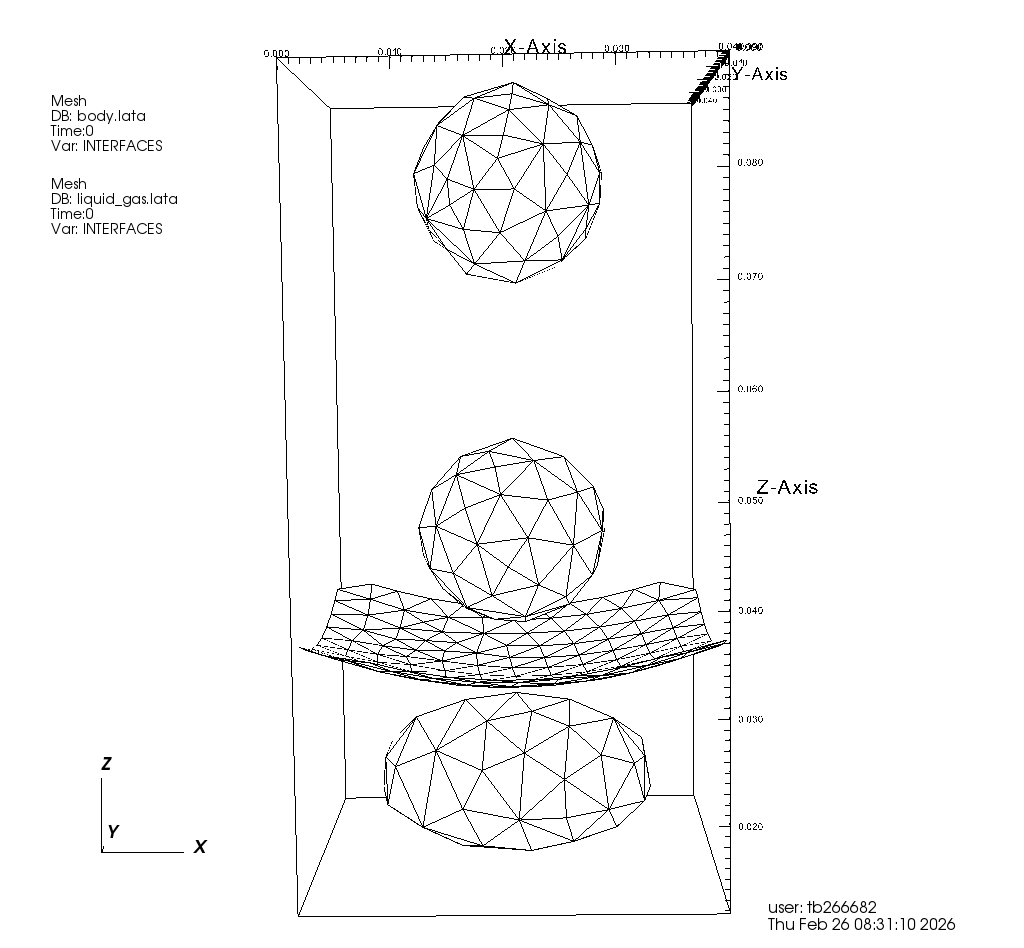
Correlation1, you should be able to see the droplets fall, the solid rotate and the surface oscillate.
Click to display expected result
Now try visualizing the concentration field.